References → Data Catalog Exploration
Explore and navigate the Data Catalog efficiently using search, filters, the information panel, and lineage tracking. These features enable users to locate assets, understand their context, and assess their relationships, supporting informed data usage and decision-making.
Search
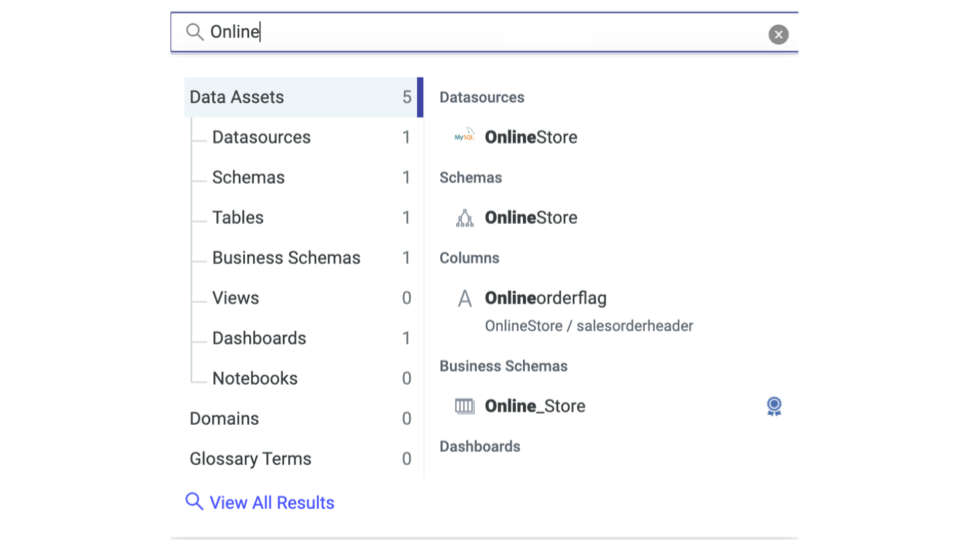
Use the Search bar to browse, filter, and search the Content directory from within the Data Catalog, including dashboards and folders. When searching the Data Catalog, the Search dialog displays the Data Catalog tree and matching items to select. Certified schemas are identified by a certification badge (🏅) for easy recognition.
Filters
Use the Filter bar to narrow the list of data assets in the Data Catalog by applying multiple filters simultaneously. The core filters, such as Type, Domain, Owner, and Tag, are available by default, and the contextual filters appear automatically based on the selected asset type. For example, Data Source Type and Data Source Category appear for data sources, and the Certified button appears for tables, schemas, business schemas, and views.
Starting 2026.3.0, Data Catalog Users can narrow the results within tables and views by selecting one or more terms in the filter bar.
This dynamic filtering system ensures that users see only the options relevant to the assets they are exploring. Refer to Explore all → Filter bar for more information.
Information (i)
Use the Information (i) panel to manage and view metadata within the Data Catalog, Schema Manager, Business Schema Manager, Data Manager, and Dashboard Manager.
This feature is available starting 2025.7.1.
To manage metadata on the data source, schema, business schema, or dashboard level, select the Information (i) icon in the top-right corner of the page. The Information panel appears, including the following options:
Rate and Review
- Select Rate and Review in the General section to give a rating out of 5 stars, provide a review in the text field, and then select Submit.
- View the submitted review in the Review tab.
- Refer to Submit and Track Requests for more information.
- Users with the Data Catalog User role and View access to assets can submit ratings using the Rate and Review option.
- The Rate and Review option is available starting 2026.3.0.
Assign Owners
- Select + Assign in the Owners section to assign an owner, and then select Done.
- Refer to Manage Domains → Assign Owners for more information.
Set Domains
- Select + Domain in the Domain section to select an existing domain from the drop-down list, and then select Save.
- Edit the assigned domain by selecting the Edit icon.
- Refer to Manage Domains → Create Domains for more information.
Add Tags
- Select + Tag in the Tags section to search for an existing tag(s), select the target tag(s), and then select Done.
- Edit the assigned tag by selecting the Edit icon.
- Refer to Manage Top Tags for more information.
Certify
- Select Certify in the Certification section, then confirm the action by selecting Certify again.
- This option is available only for Tables, Schemas, Business Schemas, and Views.
- Refer to Certify an Asset for more information.
Lineage
Use the Lineage feature to track data-asset dependencies. Select Lineage to open a graphical view of the data asset lineage, providing quick insight into dependent entities and their counts.
When you select a column in the Lineage view, a column panel opens, similar to the Information panel, where you can rate and review the asset, assign owners, add domains and tags, and certify it. The panel also displays child joins within the schema. You can select Explore More in Data Catalog to open the asset’s details page.
Refer to Tools → Data Lineage Viewer v2 for more information on Data Lineage.